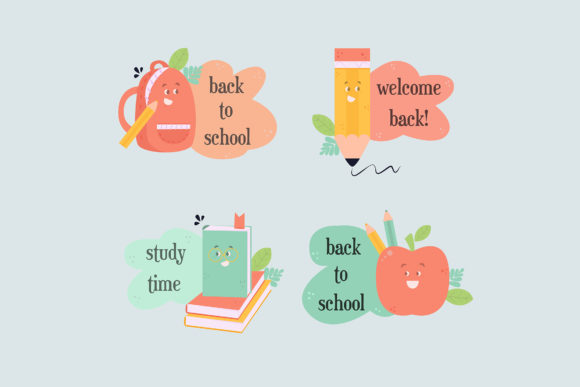
Welcome to School, Back to School Flat Design: Common Mistakes and How to Use It Right
If you’ve ever searched for back-to-school graphics, you’ve likely come across Welcome to School, Back to School Flat — a design bundle that promises easy customization with RGB color, scalable vectors, and editable layers in both Adobe Photoshop and Adobe Illustrator. It sounds like a dream for educators, small business owners, marketers, and bloggers who need quick, professional visuals. But many people dive in and end up frustrated because they overlook key details. Let’s walk through the most common mistakes and show you how to get the most out of this resource without wasting time or money.
Mistake #1: Ignoring the File Format Differences
The bundle includes PSD, AI, and EPS files. That doesn’t mean every file works the same way. Beginners often open the EPS in an old version of Illustrator and find missing fonts or broken shapes. Others try to open the PSD in a free app and wonder why layers merge or colors shift.
The fix? Always check the format before you buy or download. If you plan to use Adobe Photoshop, stick with the PSD files. For Illustrator users, use the AI or EPS files (the EPS is saved as Adobe Illustrator 10, which offers broad compatibility but may lack some newer features). If you’re not on the latest software, test one file first. This simple step saves hours of troubleshooting later.
Mistake #2: Misunderstanding “Scalable” vs. “Resizable”
“Scalable” means the vector artwork can grow or shrink without losing quality — as long as you keep it as a vector. But when you export to a raster format like JPEG, resolution becomes fixed. Many users scale up a PNG in a pixel editor and complain that the edges look blurry.
A better approach: Always edit the vector files (EPS or AI) if you need to change size dramatically. For example, a teacher creating a large banner should use the AI file, resize the artboard, and then export at 300 DPI. A marketer making social media images can safely use the PSD at the native size, but for billboards or presentations, start from the vector source.
Mistake #3: Overlooking the RGB Color Mode
All files are provided in RGB — perfect for screens, but problematic for professional print. If you print from an RGB file without converting to CMYK, colors can look dull, muddy, or completely different than expected. I’ve seen beautiful blue school backpacks turn grayish on flyers.
What to do: Check your output medium first. For digital use (websites, social media, presentations), RGB is ideal. For brochures or posters, convert the file to CMYK before adding text or finalizing. Most Adobe programs handle this conversion well, but always test a small print first. If you’re not experienced with color management, consider using a print service that accepts RGB and handles conversion internally.
Mistake #4: Neglecting Layer Organization
The “fully editable files” promise depends on how the layers are grouped and named. Beginners often start moving elements around without looking at the layer panel, then accidentally delete a layer they need or can’t find a specific item.
Practical advice: Take five minutes to explore the layer structure. In Photoshop, expand all layer groups and rename any that aren’t clear. In Illustrator, use the Layers panel to lock elements you don’t want to change (like backgrounds). This prevents accidental edits and makes color swaps simple. For example, you might want to recolor the “Welcome to School” text — if it’s a separate text layer or a shape, you can do it instantly. If it’s merged with other artwork, you’ll be stuck.
Check before you buy: look at the product previews to see if layers are shown. Even better, if a sample file is available, download it and see how organized it is.
Mistake #5: Assuming All Editors Work the Same
Because the set includes PSD, AI, and EPS, many assume they can open any file in any software. That’s not true. Opening an AI file in Photoshop may rasterize the vectors, losing scalability. Opening an EPS in a free alternative like Inkscape can work, but effects like gradients or patterns may not transfer perfectly.
How to avoid this: Use the expected software. If you only have a basic image editor, the flat design’s simplicity means you might still get acceptable results by opening the PSD and saving as a raster image. But for full editing power, use the program that matches the file type. If you’re a freelancer sharing files with clients, tell them which format to use and provide instructions.
Mistake #6: Skipping the Licensing Check
Many users assume “free to use” or “fully editable” means they can do anything — resell, redistribute, or use on merchandise with no limits. But most design bundles come with a standard license that restricts commercial use beyond a certain number of copies or prohibits reselling as standalone artwork.
What to check: Read the license agreement included in the download or on the product page. If you’re a small business creating ads or a teacher making worksheets for a paid course, confirm that your usage is covered. Ignoring this can lead to takedown notices or legal issues. When in doubt, purchase an extended license or contact the creator.
Mistake #7: Not Testing for Your Specific Use Case
This bundle is designed for back-to-school themes: school buses, pencils, apples, and cheerful kids. It’s great for classroom posters, newsletters, and event promotions. But some try to adapt it for unrelated or very formal contexts, forcing the style where it doesn’t fit.
A better choice: Match the design style to your audience and message. If you’re a marketer promoting a serious adult education program, the playful flat style might seem too childish. Conversely, an elementary school teacher will love it. Always preview the full contents and imagine your final output. If the vibe doesn’t align, look for a different bundle rather than fighting the artwork.
Practical Steps Before You Buy or Download
- List your intended uses — digital ads, print flyers, website graphics — and confirm the file format matches your workflow.
- Check the software versions you own. If you use an older Adobe version (CS6 or earlier), the AI and EPS files may open, but some features may need to be simplified.
- Test the color mode. If print is primary, ask the seller if CMYK versions are available or if you can convert easily.
- Look at the layer preview or included documentation. Well-organized files save hours of editing time.
- Review the license for commercial and non-commercial use. If you plan to use the designs in a paid product, ensure it’s allowed.
- Download a free sample of the designer’s work to evaluate quality and ease of editing before committing.
Better Approaches That Save Time
Instead of diving into editing immediately, create a project brief: what sizes do you need, what colors, and what text. Then use the smart objects in PSD or symbols in Illustrator to make global changes. For example, if you need three different banner sizes, edit one master file and scale from the vector source rather than re-doing each version.
If you’re collaborating with a team, use the same software versions and share only the native editable files (PSD or AI), not flattened exports. This prevents confusion and keeps the design consistent.
When changing colors, use the provided color swatches if they exist. If not, use the global color feature in Illustrator or adjustment layers in Photoshop so you can update later without hunting down each element.
Real Example: A Classroom Teacher vs. A Social Media Manager
Take Sarah, a third-grade teacher. She downloads the bundle to create her “Welcome Back!” bulletin board. She opens the EPS in Illustrator on her school’s older Mac, finds that some fonts are missing, but quickly substitutes them with a similar sans-serif. She prints at letter size and is happy with the result.
Now consider Jamie, a freelance social media manager. She needs a series of ads for a tutoring company. She opens the PSD in Photoshop, resizes the artboard to Instagram square, and changes the text layer. The flat icons scale fine, but because she didn’t lock the background layer, she accidentally moves the chalkboard graphic. She can undo, but it could have been avoided with a quick layer check.
Both got usable results, but both could have been faster and more confident with a little upfront planning.
What Makes This Bundle Valuable (When Used Right)
The flat design style is trendy, clean, and communicates effectively for school-related content. The easy change colors feature is genuinely helpful if the layers are set up with global swatches. The RGB color ensures vibrant digital use, and the multiple formats provide flexibility. But the real value comes from understanding these features instead of assuming they work automatically.
If you’re a beginner, don’t hesitate to search for quick tutorials on the software you’ll use. Many designers share tips specific to flat design elements. And if you’re a pro, use the bundle as a base and modify heavily — it’s often faster than drawing from scratch.
Ultimately, Welcome to School, Back to School Flat can be a productive resource for anyone creating back-to-school visuals. Avoid the common pitfalls: choose the right format, manage your colors and layers with care, respect the license, and always test before committing to a full project. With these practices, you’ll create polished, professional materials that make your audience feel ready for a great school year.